Developer Guide
- Acknowledgements
- Setting up, getting started
- Design
- Implementation
- Documentation, logging, testing, configuration, dev-ops
- Appendix: Planned Enhancements
- Appendix: Effort
- Appendix: Requirements
- Appendix: Instructions for manual testing
Acknowledgements
EduConnect was developed based on the project codebase of Address Book 3 (AB3). This project builds upon the foundational architecture and core functionalities established in AB3, while introducing new features and customizations tailored for managing student and teacher data.
Setting up, getting started
Refer to the guide Setting up and getting started.
Design
 Tip: The
 .puml files used to create diagrams in this document docs/diagrams folder. Refer to the PlantUML Tutorial at se-edu/guides to learn how to create and edit diagrams.
Architecture
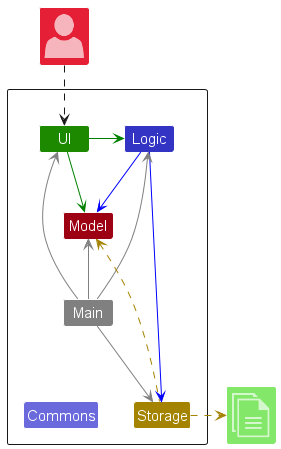
The Architecture Diagram given above explains the high-level design of the App.
Given below is a quick overview of main components and how they interact with each other.
Main components of the architecture
Main (consisting of classes Main and MainApp) is in charge of the app launch and shut down.
- At app launch, it initializes the other components in the correct sequence, and connects them up with each other.
- At shut down, it shuts down the other components and invokes cleanup methods where necessary.
The bulk of the app’s work is done by the following four components:
-
UI: The UI of the App. -
Logic: The command executor. -
Model: Holds the data of the App in memory. -
Storage: Reads data from, and writes data to, the hard disk.
Commons represents a collection of classes used by multiple other components.
How the architecture components interact with each other
The Sequence Diagram below shows how the components interact with each other for the scenario where the user issues the command delete 1.
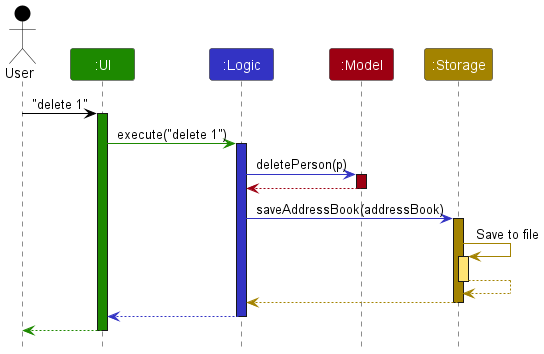
Each of the four main components (also shown in the diagram above),
- defines its API in an
interfacewith the same name as the Component. - implements its functionality using a concrete
{Component Name}Managerclass (which follows the corresponding APIinterfacementioned in the previous point.
For example, the Logic component defines its API in the Logic.java interface and implements its functionality using the LogicManager.java class which follows the Logic interface. Other components interact with a given component through its interface rather than the concrete class (reason: to prevent outside component’s being coupled to the implementation of a component), as illustrated in the (partial) class diagram below.
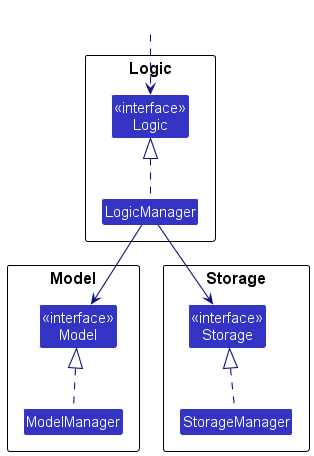
The sections below give more details of each component.
UI component
The API of this component is specified in Ui.java
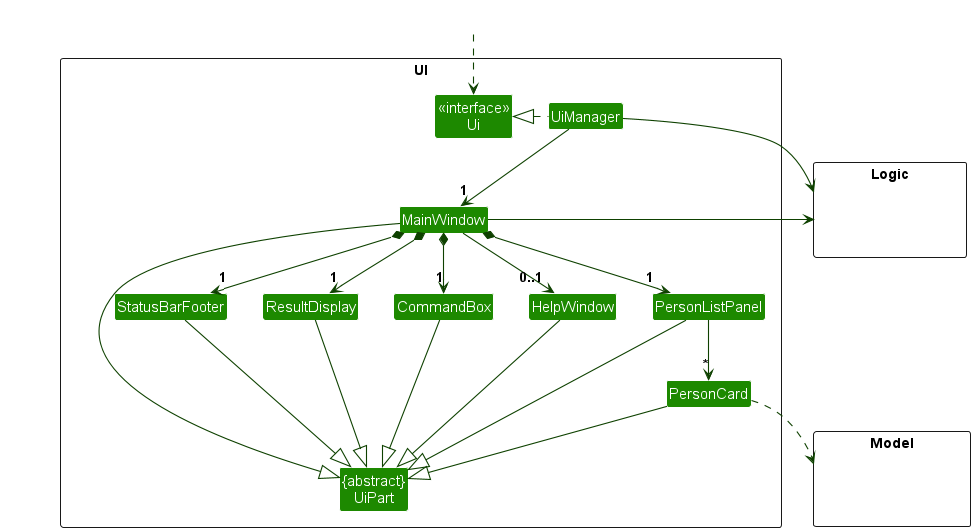
The UI consists of a MainWindow that is made up of parts e.g.CommandBox, ResultDisplay, PersonListPanel, StatusBarFooter etc. All these, including the MainWindow, inherit from the abstract UiPart class which captures the commonalities between classes that represent parts of the visible GUI.
The UI component uses the JavaFx UI framework. The layout of these UI parts are defined in matching .fxml files that are in the src/main/resources/view folder. For example, the layout of the MainWindow is specified in MainWindow.fxml.
The UI component,
- executes user commands using the
Logiccomponent. - listens for changes to
Modeldata so that the UI can be updated with the modified data. - keeps a reference to the
Logiccomponent, because theUIrelies on theLogicto execute commands. - depends on some classes in the
Modelcomponent, as it displaysPersonobject residing in theModel.
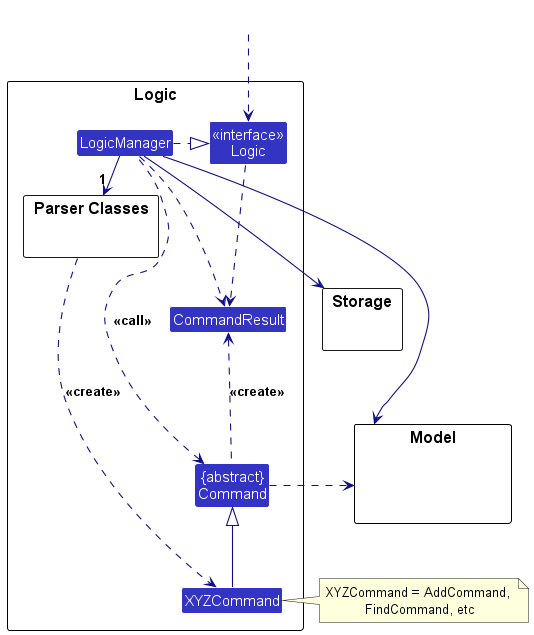
Logic component
API : Logic.java
Here’s a (partial) class diagram of the Logic component:
The sequence diagram below illustrates the interactions within the Logic component, taking execute("delete 1") API call as an example.
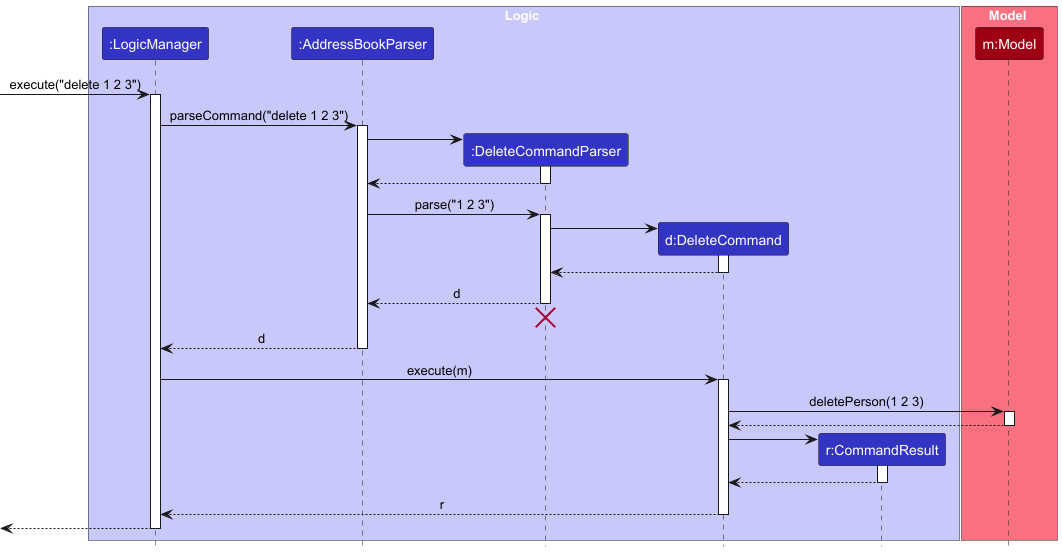
 Note: The lifeline for
 DeleteCommandParser should end at the destroy marker (X) but due to a limitation of PlantUML, the lifeline continues till the end of diagram.
How the Logic component works:
- When
Logicis called upon to execute a command, it is passed to anAddressBookParserobject which in turn creates a parser that matches the command (e.g.,DeleteCommandParser) and uses it to parse the command. - This results in a
Commandobject (more precisely, an object of one of its subclasses e.g.,DeleteCommand) which is executed by theLogicManager. - The command can communicate with the
Modelwhen it is executed (e.g. to delete a person).
Note that although this is shown as a single step in the diagram above (for simplicity), in the code it can take several interactions (between the command object and theModel) to achieve. - The result of the command execution is encapsulated as a
CommandResultobject which is returned back fromLogic.
Here are the other classes in Logic (omitted from the class diagram above) that are used for parsing a user command:
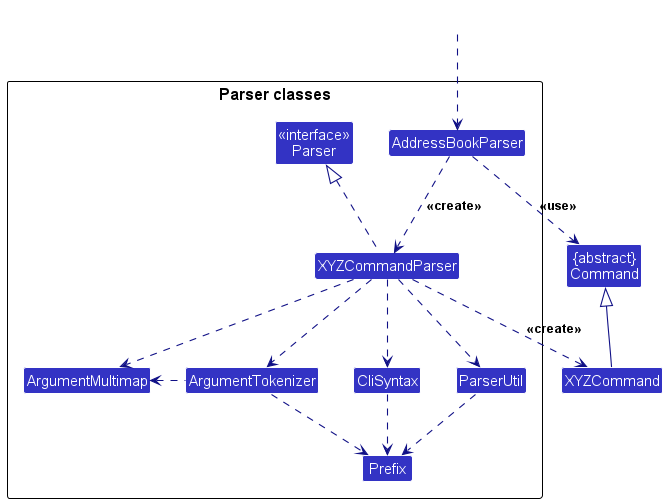
How the parsing works:
- When called upon to parse a user command, the
AddressBookParserclass creates anXYZCommandParser(XYZis a placeholder for the specific command name e.g.,AddCommandParser) which uses the other classes shown above to parse the user command and create aXYZCommandobject (e.g.,AddCommand) which theAddressBookParserreturns back as aCommandobject. - All
XYZCommandParserclasses (e.g.,AddCommandParser,DeleteCommandParser, …) inherit from theParserinterface so that they can be treated similarly where possible e.g, during testing.
Model component
API : Model.java
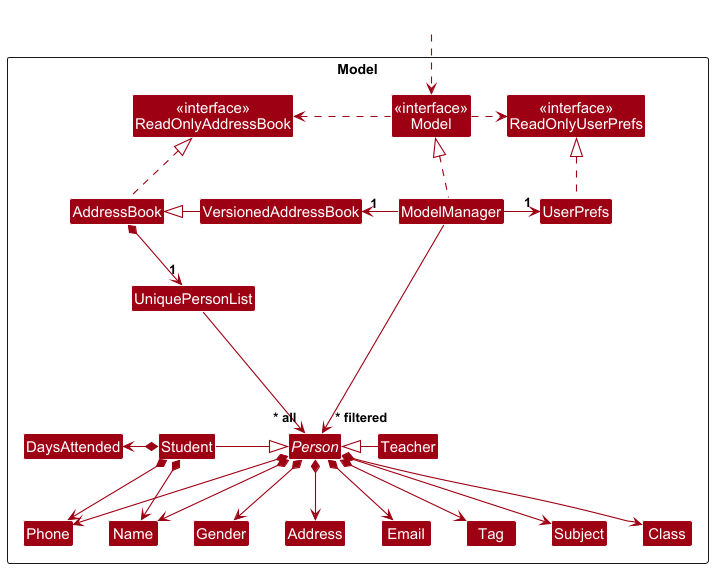
The Model component,
- stores the address book data i.e., all
Personobjects (which are contained in aUniquePersonListobject). - stores the currently ‘selected’
Personobjects (e.g., results of a search query) as a separate filtered list which is exposed to outsiders as an unmodifiableObservableList<Person>that can be ‘observed’ e.g. the UI can be bound to this list so that the UI automatically updates when the data in the list change. - stores a
UserPrefobject that represents the user’s preferences. This is exposed to the outside as aReadOnlyUserPrefobjects. - does not depend on any of the other three components (as the
Modelrepresents data entities of the domain, they should make sense on their own without depending on other components).
Note: An alternative (arguably, a more OOP) model is given below. It has a Tag list in the AddressBook, which Person references. This allows AddressBook to only require one Tag object per unique tag, instead of each Person needing their own Tag objects.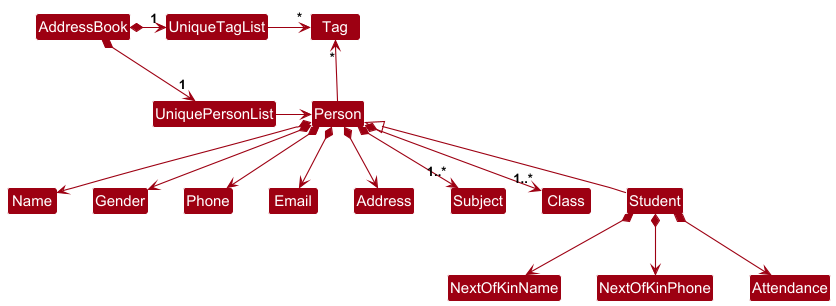
Storage component
API : Storage.java
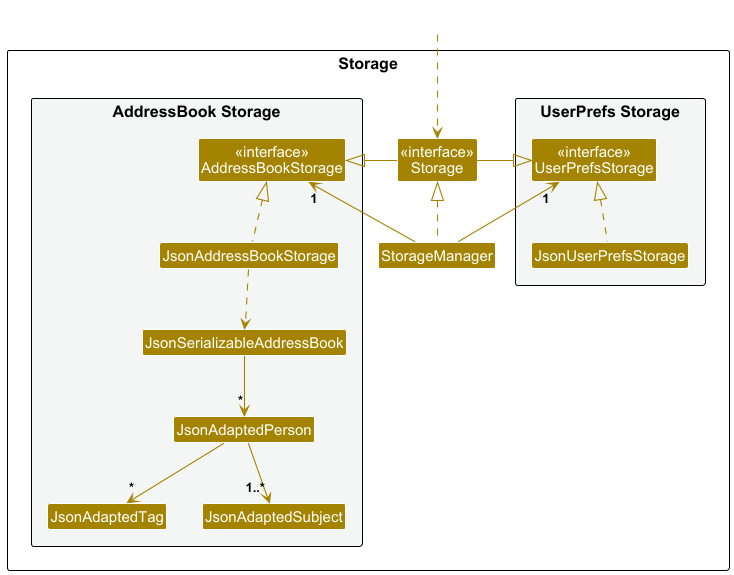
The Storage component,
- can save both address book data and user preference data in JSON format, and read them back into corresponding objects.
- inherits from both
AddressBookStorageandUserPrefStorage, which means it can be treated as either one (if only the functionality of only one is needed). - depends on some classes in the
Modelcomponent (because theStoragecomponent’s job is to save/retrieve objects that belong to theModel).
Common classes
Classes used by multiple components are in the seedu.address.commons package.
Implementation
This section describes some noteworthy details on how certain features are implemented.
Command History
Implementation
The command history functionality is implemented in three main components:
-
CommandHistory: This class maintains a list of past commands andcurrentIndexto track the current position within the list. It includes methods for adding new commands and retrieving the previous or next command:
-
add(command)— Adds a command to the history and resets the pointer to the most recent position. -
getPreviousCommand()— Moves the pointer to the previous command and returns it. -
getNextCommand()— Moves the pointer to the next command and returns it.
-
LogicManager: TheLogicManagercomponent integrates theCommandHistoryto store each command upon execution. It provides access to the history for other components like the UI. -
CommandBoxUI Component: This component captures key events when the user presses the up or down arrow keys. Based on these key events, it retrieves commands fromCommandHistoryviaLogicManagerand displays them in the command input field.
Sequence Diagram
The following sequence diagram illustrates the flow when a user presses the up arrow key to access the previous command in history:
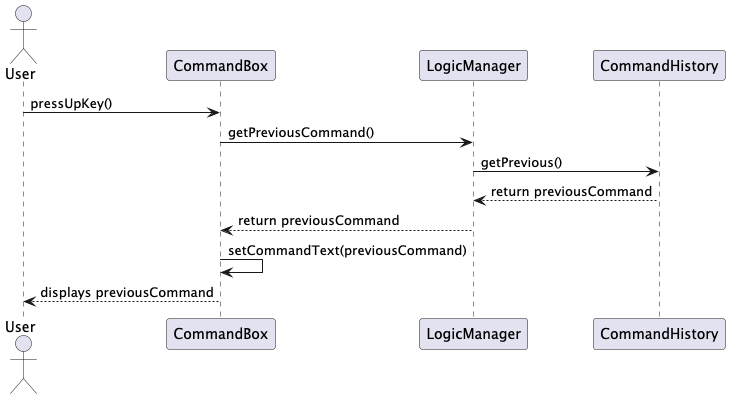
- The user presses the up arrow key.
-
CommandBoxcallsLogicManager#getPreviousCommand(). -
LogicManagerdelegates this request toCommandHistory#getPrevious(). -
CommandHistoryretrieves the previous command and returns it toLogicManager. -
LogicManagerthen passes the command back toCommandBox. -
CommandBoxdisplays the previous command in the input field.
This streamlined structure keeps the history management isolated within CommandHistory, simplifying logic in other components. The result is an intuitive user experience that enhances the command-line interface.
Undo/redo feature
Implementation
The undo/redo mechanism is facilitated by VersionedAddressBook. It extends AddressBook with an undo/redo history, stored internally as an addressBookStateList and currentStatePointer. It also stores a predicateStateList for the Predicates used for each state. Additionally, it implements the following operations:
-
VersionedAddressBook#commit()— Saves the current address book state in its history. -
VersionedAddressBook#undo()— Restores the previous address book state from its history. -
VersionedAddressBook#redo()— Restores a previously undone address book state from its history.
These operations are exposed in the Model interface as Model#commitAddressBook(), Model#undoAddressBook() and Model#redoAddressBook() respectively.
Given below is an example usage scenario and how the undo/redo mechanism behaves at each step.
Step 1. The user launches the application for the first time. The VersionedAddressBook will be initialized with the initial address book state, and the currentStatePointer pointing to that single address book state.
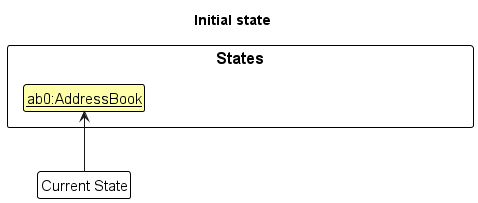
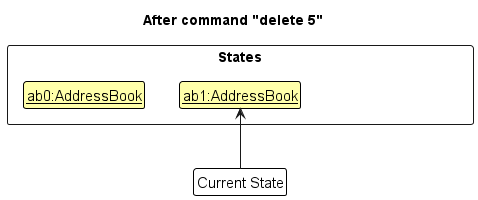
Step 2. The user executes delete 5 command to delete the 5th person in the address book. The executeCommand method in the Command class calls Model#commitAddressBook(), causing the modified state of the address book after the delete 5 command executes to be saved in the addressBookStateList, and the currentStatePointer is shifted to the newly inserted address book state.
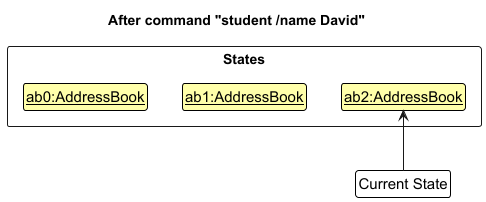
Step 3. The user executes student /name David … to add a new person. The executeCommand command also calls Model#commitAddressBook(), causing another modified address book state to be saved into the addressBookStateList.
Note: If a command fails its execution, it will not call Model#commitAddressBook(), so the address book state will not be saved into the addressBookStateList.
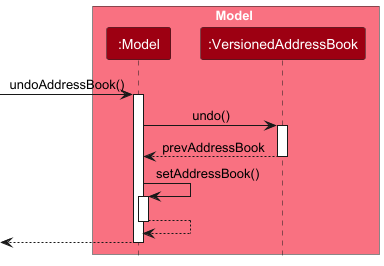
Step 4. The user now decides that adding the person was a mistake, and decides to undo that action by executing the undo command. The undo command will call Model#undoAddressBook(), which will shift the currentStatePointer once to the left, pointing it to the previous address book state, and restores the address book to that state.
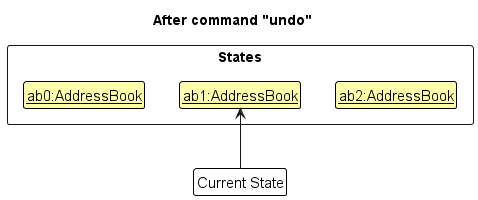
Note: If the currentStatePointer is at index 0, pointing to the initial AddressBook state, then there are no previous AddressBook states to restore. The undo command indirectly uses VersionedAddressBook#undo() which checks if the currentStatePointer is at index 0. If so, it will return an error to the user rather than attempting to perform the undo.
The following sequence diagram shows how an undo operation goes through the Logic component:
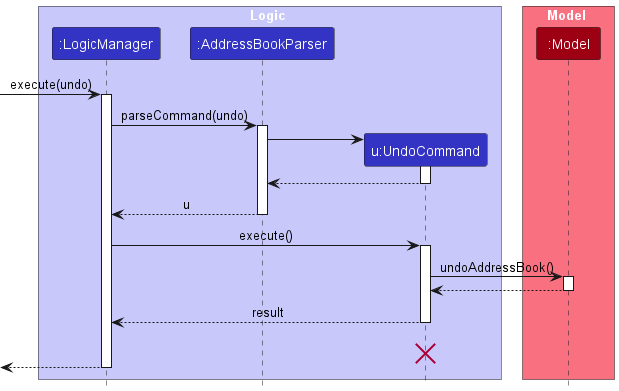
Note: The lifeline for UndoCommand should end at the destroy marker (X) but due to a limitation of PlantUML, the lifeline reaches the end of diagram.
Similarly, how an undo operation goes through the Model component is shown below:
The redo command does the opposite — it calls Model#redoAddressBook(), which shifts the currentStatePointer once to the right, pointing to the previously undone state, and restores the address book to that state.
Note: If the currentStatePointer is at index addressBookStateList.size() - 1, pointing to the latest address book state, then there are no undone AddressBook states to restore. The redo command indirectly uses VersionedAddressBook#redo() to check if currentStatePointer is at index addressBookStateList.size() - 1. If so, it will return an error to the user rather than attempting to perform the redo.
Step 5. The user then decides to execute the command help. Commands that do not modify the address book, such as help, will usually not call Model#commitAddressBook(), Model#undoAddressBook() or Model#redoAddressBook(). Thus, the addressBookStateList remains unchanged.
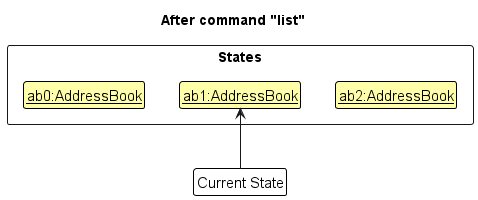
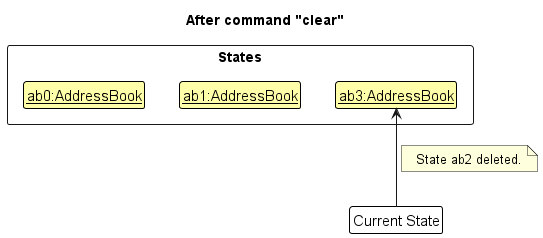
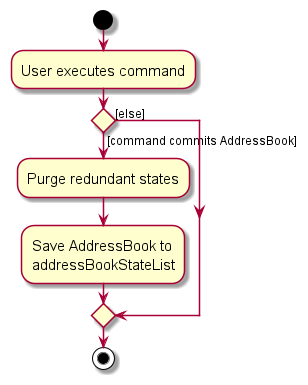
Step 6. The user executes clear, which calls Model#commitAddressBook(). Since the currentStatePointer is not pointing at the end of the addressBookStateList, all address book states after the currentStatePointer will be purged. Reason: It no longer makes sense to redo the student /name David … command. This is the behavior that most modern desktop applications follow.
The following activity diagram summarizes what happens when a user executes a new command:
Documentation, logging, testing, configuration, dev-ops
Appendix: Planned Enhancements
Team Size: 5
-
Update
studentandteachersuccess message: The current success message for adding a student or teacher without any tags ends with; Tags:, i.e. it attempts to display the tags but since none were added, it ends off abruptly.We plan to make the success message only mention the Tags if there are tags to be listed, e.g. either
... Next of Kin: Bob Doe; Emergency Contact: 87654321;(i.e. no tags) or... Next of Kin: Bob Doe; Emergency Contact: 87654321; Tags: [friend](i.e. at least one tag to be displayed). -
Enhance
markcommand’s implementation: The current implementation ofmarkcan only mark the attendance of all students together. This prevents users from easily marking the attendance of individual students. The current workaround is to eithermarkandunmarkall other students or todeleteand add the student back into EduConnect with the incremented attendance field.We plan to introduce optional index parameters for the
markcommand, allowing users to specify which indexes to specifically mark the attendance of. This implementation will be similar to theunmarkcommand. E.g.markwill still mark the attendance of all students butmark 1 2will only mark the attendance of the 1st and 2nd index persons (assuming they are students). -
Use shorter command aliases: Currently, EduConnect requires users to use longer parameters such as
/namewhen entering commands.We plan to introduce shorter command aliases, such as
/nfor/name, to make input faster and more convenient for users. -
Prevent
editcommand from accepting/nok,/attendanceand/emergencyprefix forteacher: The current implementation of theeditcommand allows for the use of/nok,/attendanceand/emergencyprefixes forteachercontacts. This is not necessary as these fields are not applicable to teachers.We plan to prevent the use of these prefixes for
teachercontacts, ensuring that only the relevant fields can be edited for teachers. -
Relax restrictions on phone number to allow international phone numbers: The current implementation of the
addcommand restricts phone numbers to be 8 digits long. This is not suitable for international phone numbers, which can be longer than 8 digits.We plan to relax the restrictions on phone numbers to allow for international phone numbers, which can be longer than 8 digits. This will allow for a wider range of phone numbers to be added to EduConnect.
-
Make
genderparameter case-insensitive: The current parameter ofgenderrequires the user to input strictlymaleorfemale. This is not user-friendly as users may inputMaleorFemaleinstead.We plan to make the
genderparameter case-insensitive and accept bothmaleandfemaleand alsomandfin any case as valid inputs to allow for a more user-friendly experience. -
Ability to edit attendance for students: The current
editcommand does not support editing the attendance parameter.We plan to enhance the
editcommand to include the ability to directly modify the student’s attendance field to a specified value, provided it adheres to the required constraints of the attendance parameter. The command format will beedit INDEX [/attendance ATTENDANCE]. -
Update
findcommand to support partial matching: The currentfindcommand only supports exact matches for search parameters, which limits its flexibility.We plan to enhance the
findcommand to allow partial matches, enabling users to search for entries using incomplete information. For instance, enteringfind /name hanwould return results such as “Hans Gruber” and “Johanna Smith.”. -
Prevent duplicate subjects to be added: The current implementation for adding a contact allows for duplicate subjects to be added for a contact.
We plan to prevent the addition of duplicate contacts by filtering out subjects that already exist in the contact’s subject list.
-
Allow certain special characters in names: The current implementation for adding a contact prevents the use of any special characters in names.
We plan to allow the incorporation of characters such as ‘/’ and ‘-‘ in names to accommodate a wider range of names.
Appendix: Effort
The main difficulty faced by the team was understanding the existing codebase and adapting it to meet new requirements. The team had to dedicate a significant amount of time to comprehending the codebase and the interactions between its various components, which was a considerable challenge due to their lack of prior experience with it.
Fortunately, the existing AB3 developer guide provided a solid starting point for tackling the new requirements. By leveraging the guide, the team was able to implement new features, such as abstracting Person into Student and Teacher.
The learning curve associated with JavaFX and implementing the GUI presented another significant challenge for the team. With only basic knowledge gained from their iP projects, the team had to learn JavaFX from scratch, dedicating a substantial amount of time to mastering it and implementing the GUI, which in turn slowed down the development process.
Additionally, making significant changes to the JSON storage file posed another hurdle. The team needed to understand how the JSON storage file functioned and how to modify it without disrupting existing functionality. This was particularly challenging due to the team’s lack of prior experience with JSON storage files, requiring them to learn how to make modifications without causing issues in the current system.
Appendix: Requirements
Product scope
Target user profile: School teachers looking to manage the details of both students and other teachers.
- needs to keep track of many students at a time
- can type fast
- prefers to type in a command line interface
- uses a small set of commands
- makes frequent typos but hates to backtrack with backspace
- likes to have an autocomplete suggestion
Value proposition: EduConnect will provide a faster and more convenient way to manage details of students and teachers than other apps.
User stories
Priorities: High (must have) - * * *, Medium (nice to have) - * *, Low (unlikely to have) - *
| Priority | As a … | I want to … | So that I can… |
|---|---|---|---|
* * * |
new user | see usage instructions | refer to instructions when I forget how to use the App |
* * * |
teacher | add a new student and their details | keep track of student information efficiently and manage their data in one place |
* * * |
teacher | remove/delete a student from the app | remove entries that I no longer need |
* * * |
teacher | add a new teacher and their details | find information on other teachers if need be |
* * * |
teacher | remove/delete a teacher from the app | remove entries that I no longer need |
* * * |
teacher | edit or update information of a student | keep the data stored accurate and up to date |
* * |
teacher | clear all student/class data from the previous semester/year | reset the app for the new semester/year |
* * |
teacher | search for students by some partial information | quickly find a list of students without recalling specific details |
* * |
teacher | tag and filter students based on specific attributes | access relevant groups without manually searching every time |
* |
teacher new to EduConnect | see a sample version of how the app will look with sample data | better visualise the workflow or how the app will work or look |
* |
teacher who makes typos | have flexibility in typos for the commands | continue writing commands without needing to rewrite or backspace |
* |
teacher familiar with CLI | use shortcuts or linux-like commands | enter commands faster and more familiar to me |
* |
teacher | export student list and contact information to various formats | share and archive data easily for administrative purposes |
* |
teacher | switch between different classes using keybinds | navigate between different groups of students efficiently |
* |
teacher | have an undo/redo command for recent actions | quickly correct mistakes or revert changes |
* |
teacher | create custom command aliases for frequently used commands | streamline my workflow and reduce the number of keystrokes needed |
* |
teacher | have built-in calendar integration that links student info with important dates (e.g. parent meetings, exams) | easily access all relevant student data when preparing for key events |
* |
teacher | quickly generate printable class rosters with selected details (e.g. names, contact info, emergency contacts) | have a physical copy for field trips or offline use |
* |
teacher | have a dark mode or customizable themes for the interface | reduce eye strain while managing student data at night |
* |
teacher | use natural language input for commands (e.g. “add student John Doe to class 5a”) | enter commands more intuitively without memorising specific syntax |
* |
teacher | group students based on customizable criteria (e.g. performance level, participation) | easily view and manage students with similar needs |
* |
teacher | get the contact details of a frequently searched contact | quickly use it to contact a student |
* |
teacher | systematically add the contact details of twins who share similar details | have a smaller chance of having errors |
Use cases
(For all use cases below, the System is EduConnect and the Actor is a Teacher (User), unless specified otherwise)
Use case: UC01 - Add a student
Preconditions
- User has the student’s details, i.e. name, gender, contact, classes, subject, email, address, attendance, next of kin and emergency contact.
MSS
- Teacher enters the add student command.
- EduConnect verifies the command inputs.
- EduConnect adds the student’s contact details to the address book.
-
EduConnect displays a success message.
Use case ends.
Extensions
- 2a. Required parameter(s) missing in command format.
-
2a1. EduConnect displays an error message.
Use case ends.
-
- 2b. Invalid/Unsupported parameter tag used.
-
2b1. EduConnect displays an error message.
Use case ends.
-
- 2c. Invalid argument for a parameter given.
-
2c1. EduConnect displays an error message, e.g. “Names should only contain alphanumeric characters and spaces, and it should not be blank”.
Use case ends.
-
- 2d. Existing contact or email given.
-
2d1. EduConnect displays an error message, e.g. “This student already exists in the address book”.
Use case ends.
-
Use case: UC02 - Add a teacher
Preconditions
- User has the teacher’s details, i.e. name, gender, contact, classes, subject, email and address.
MSS
- Teacher enters the add teacher command.
- EduConnect verifies the command inputs.
- EduConnect adds the teacher’s contact details to the address book.
-
EduConnect displays a success message.
Use case ends.
Extensions
- 2a. Required parameter(s) missing in command format.
-
2a1. EduConnect displays an error message.
Use case ends.
-
- 2b. Invalid/Unsupported parameter tag used.
-
2b1. EduConnect displays an error message.
Use case ends.
-
- 2c. Invalid argument for a parameter given.
-
2c1. EduConnect displays an error message, e.g. “Names should only contain alphanumeric characters and spaces, and it should not be blank”.
Use case ends.
-
- 2d. Existing contact or email given.
-
2d1. EduConnect displays an error message, e.g. “This student already exists in the address book”.
Use case ends.
-
Use case: UC-03 Delete a contact
Preconditions
- The address book contains at least one contact.
- User knows the index of the contact to be deleted.
MSS
- Teacher enters the delete contact command.
- EduConnect verifies the index validity.
- EduConnect deletes the contact from the address book.
-
EduConnect displays a success message.
Use case ends.
Extensions
- 2a. Invalid index provided.
-
2a1. EduConnect displays an error message, e.g. “The person index provided is invalid: 2”.
Use case ends.
-
Use case: UC-04 List contacts
MSS
- Teacher enters the list command.
-
EduConnect displays a list of all contacts in the address book.
Use case ends.
Use case: UC-05 Edit a contact
Preconditions
- The address book contains at least one contact.
- User knows the index of the contact to be edited.
MSS
- Teacher enters the edit command.
- EduConnect verifies the command inputs.
- EduConnect edits the specified contact in the address book.
-
EduConnect displays a success message.
Use case ends.
Extensions
- 2a. Invalid index provided.
-
2a1. EduConnect displays an error message.
Use case ends.
-
- 2b. Invalid/Unsupported parameter tag used.
-
2b1. EduConnect displays an error message.
Use case ends.
-
- 2c. Invalid new argument for a parameter given.
-
2c1. EduConnect displays an error message, e.g. “Names should only contain alphanumeric characters and spaces, and it should not be blank”.
Use case ends.
-
- 2d. Duplicate contact or email provided.
-
2d1. EduConnect displays an error message, e.g. “This student already exists in the address book”.
Use case ends.
-
Use case: UC-06 Clear
Preconditions
- User may optionally specify tags to filter which contacts are cleared.
MSS
- Teacher enters the clear command.
- EduConnect clears all contacts in the address book.
-
EduConnect displays a success message.
Use case ends.
Extensions
- 1a. Teacher specifies a tag to clear.
-
1a1. EduConnect clears all contacts with that tag value in the address book.
Use case ends.
-
- 1b. Teacher specifies an invalid tag.
-
1b1. EduConnect displays an error message.
Use case ends.
-
- 1c. Teacher specifies a tag with no matching contacts.
-
1c1. EduConnect displays an error, e.g. “No possible entries in EduConnect to clear!”.
Use case ends.
-
Use case: UC-07 Find
MSS
- Teacher enters the find command with some specific criteria.
-
EduConnect displays a list of all persons that fit that criteria in the address book.
Use case ends.
Extensions
- 1a. Teacher doesn’t specify any criteria.
-
1b1. EduConnect displays an error message.
Use case ends.
-
- 1b. Teacher uses invalid tags to filter.
-
1b1. EduConnect displays an error message.
Use case ends.
-
Use case: UC-08 Sort
MSS
- Teacher enters the sort command with some criteria.
- EduConnect sorts the list of all persons by that criteria.
-
EduConnect displays the list of all persons in the address book.
Use case ends.
Extensions
- 1a. Teacher doesn’t specify any criteria.
-
1a1. EduConnect displays an error message.
Use case ends.
-
- 1b. Teacher specifies invalid criteria.
-
1b1. EduConnect displays an error message.
Use case ends.
-
Use case: UC-09 Mark Attendance
MSS
- Teacher enters the mark command.
-
EdUConnect marks all the students attendance, incrementing it by 1.
Use case ends.
Use case: UC-10 Unmark Attendance
MSS
- Teacher enters the unmark command with the index(es) of the student(s) to unmark.
-
EduConnect unmarks the specified student(s) attendance, decrementing it by 1.
Use case ends.
Extensions
- 1a. Teacher doesn’t specify any indexes.
-
1a1. EduConnect displays an error message.
Use case ends.
-
- 1b. Teacher specifies an invalid index.
-
1b1. EduConnect displays an error message.
Use case ends.
-
- 1c. Teacher specifies an index of a Student with 0 days attendance.
-
1c1. EduConnect displays an error message, e.g. “Only students who have attended at least one day can be unmarked”.
Use case ends.
-
Use case: UC-11 Reset attendance
MSS
- Teacher enters the resetAttendance command.
-
EduConnect resets the attendance of all students in the address book.
Use case ends.
Non-Functional Requirements
- Should work on any mainstream OS as long as it has Java
17or above installed. - Should be able to hold up to 1000 persons without a noticeable sluggishness in performance for typical usage.
- A user with above average typing speed for regular English text (i.e. not code, not system admin commands) should be able to accomplish most of the tasks faster using commands than using the mouse.
- The system should handle errors gracefully, providing clear error messages for invalid inputs or operations.
- The system should be platform-independent and capable of running on any operating system that supports Java, ensuring that users across different platforms can use the program.
- The code should be well-documented, enabling developers to maintain and upgrade the system efficiently.
- The system should be modular, allowing for easy extension in the future (e.g., adding new fields for contacts or new types of commands).
Glossary
- Mainstream OS: Windows, Linux, Unix, MacOS.
- Private contact detail: A contact detail that is not meant to be shared with others.
- Subject: The subject the student / teacher is taking.
- Class: The class the student / teacher is taking.
- Command Line Interface (CLI): Text-based user interface that allows the user to input.
- Next-of-Kin: The contact of the closest relative of the current contact.
- Database: An organized collection of structured information or data, typically stored electronically.
- GUI (Graphical User Interface): A visual user interface that allows users to interact with an application through graphical elements like buttons, icons, and menus, instead of typing commands.
- Encryption: The process of converting plain text data into a coded format to prevent unauthorized access.
- Version Control: A system that records changes to a file or set of files over time, allowing developers to track and manage revisions.
Appendix: Instructions for manual testing
Given below are instructions to test the app manually.
Note: These instructions only provide a starting point for testers to work on;
testers are expected to do more exploratory testing.
Launch and shutdown
- Initial launch
- Download the jar file and copy into an empty folder.
- Open the “Command Prompt” (for Windows) or “Terminal” (for Mac/Linux).
- Type
cdfollowed by the folder location where you saved the EduConnect file. -
Type and enter the command
java -jar educonnect.jar.Expected: Shows the GUI with a set of sample contacts. The window size may not be optimum.
- Saving window preferences
- Resize the window to an optimum size. Move the window to a different location. Close the window.
- Re-launch the app by following the instructions from 1ii onwards.
Expected: The most recent window size and location is retained.
Adding a Student
- Adding a Student
- Prerequisites: There is no existing person (student or teacher) in EduConnect with the same contact or email as the student we’re adding.
- Test case:
student /name John Doe /gender male /contact 98765432 /email johnd@example.com /address 311, Clementi Ave 2, #02-25 /subject Physics /classes 7A,7B /attendance 0 /nok Bob Doe /emergency 87654321
Expected: A student is added to EduConnect with the specified details. A new blue colored card is added to the GUI with the student’s details. - Test case:
student(missing required fields like name, contact, etc. )
Expected: No student is added. An error is thrown indicating the command given has an invalid format. - Other incorrect
studentcommands to try:-
student /name John Doe(missing other required fields) -
student /name John Doe /contact 12345 ...(invalid phone format)
Expected: Similar to previous case. No student is added. If all required fields are provided but an invalid format was used, specific error details for that will be given. For example, “Phone numbers should only contain numbers, and it should be exactly 8 digits long”.
-
Adding a Teacher
- Adding a Teacher
- Prerequisites: There is no existing person (student or teacher) in EduConnect with the same contact or email as the teacher we’re adding.
- Test case:
teacher /name John Doe /gender male /contact 98765432 /email johnd@example.com /address 311, Clementi Ave 2, #02-25 /subject Physics /classes 7A,7B
Expected: A teacher is added to EduConnect with the specified details. A new green colored card is added to the GUI with the teacher’s details. - Test case:
teacher(missing required fields like name, contact, etc. )
Expected: No teacher is added. An error is thrown indicating the command given has an invalid format. - Other incorrect
teachercommands to try:-
teacher /name John Doe(missing other required fields) -
teacher /name John Doe /contact 12345 ...(invalid phone format)
Expected: Similar to previous case. No teacher is added. If all required fields are provided but an invalid format was used, specific error details for that will be given. For example, “Phone numbers should only contain numbers, and it should be exactly 8 digits long”.
-
Deleting a person
- Deleting a person while all persons are being shown
- Prerequisites: List all persons using the
listcommand. Multiple persons in the list. - Test case:
delete 1
Expected: First contact is deleted from the list. Details of the deleted contact shown in the status message. - Test case:
delete 0
Expected: No person is deleted. Error details shown in the status message. - Other incorrect delete commands to try:
delete,delete x(where x is larger than the list size, negative or a non-integer)
Expected: Similar to previous. - Test case:
delete 1 2
Expected: First and second contact is deleted from the list. Details of the deleted contacts are shown in the status message.
- Prerequisites: List all persons using the
- Deleting a person while only some persons are shown
- Prerequisites: Possibly only some persons are shown, using the
findcommand. Not all persons may be shown. - Test case:
delete 1
Expected: First contact in the filtered list is deleted from EduConnect. Details of the deleted contact shown in the status message. - Similar test cases as before, but now relative to the current filtered shown list.
- Prerequisites: Possibly only some persons are shown, using the
Editing a person
- Editing a person while all persons are shown
- Prerequisites: List all persons using the
listcommand. Multiple persons in the list. - Test case:
edit 1 /name Bob
Expected: First contact’s name is edited to “Bob”. Details of the edited contact shown in the status message. - Test case:
edit 3 /name Bob /contact 12345678
Expected: Third contact’s name is edited to “Bob” and contact number is edited to 12345678. Details of the edited contact shown in the status message. - Test case:
edit 0 /name Bob
Expected: No person is edited. Error details shown in the status message. - Other incorrect edit commands to try:
edit,edit x(where x is larger than the list size, negative or non-integer),edit 1 /contact 111(invalid phone format)
Expected: Similar to previous case. No person is edited. If an invalid format was used, specific error details for that will be given. For example, “Phone numbers should only contain numbers, and it should be exactly 8 digits long”.
- Prerequisites: List all persons using the
Clearing EduConnect
- Clearing data from EduConnect with at least one person
- Prerequisites: There exists at least one person in EduConnect.
- Test case:
clear
Expected: All contacts are cleared from EduConnect. - Test case:
clear /name John
Expected: All contacts that have “John” in their name will be cleared from EduConnect. If there are no existing contacts with “John” in their name, an error will be thrown. - Test case:
clear /name John Doe
Expected: All contacts that have either “John” or “Doe” in their name will be cleared from EduConnect. As before, if there are no existing contacts that fit that criteria, an error will be thrown. - Test case:
clear /name John /subject Physics
Expected: All contacts that either have “John” in their name or “Physics” in their subjects will be cleared from EduConnect. As before, if there are no existing contacts that fit that criteria, an error will be thrown. - Test case:
clear /x(where x is an invalid TAG)
Expected: No contacts are deleted. Error details shown in the status message.
Listing
- Listing all persons in EduConnect
- Test case:
list
Expected: All persons in EduConnect are listed out in the GUI. - Test case:
list x(where x is some other random input)
Expected: Same as case before. Random inputxis ignored.
- Test case:
Sorting
- Sorting EduConnect while all persons are shown
- Prerequisites: List all persons using the
listcommand. Multiple persons in the list. - Test case:
sort name
Expected: All the persons in EduConnect are sorted by their name in alphabetical order. - Test case:
sort subject
Expected: All the persons in EduConnect are sorted by their first subject in their list in alphabetical order. - Test case:
sort class
Expected: All the persons in EduConnect are sorted by their first class in their list in alphabetical order. - Test case:
sort attendance
Expected: All the persons in EduConnect are sorted by their attendance in descending order. Teachers (who don’t have attendance) are pushed to the end. - Test case:
sort x(where x is some random input that isn’t any of the earlier test cases)
Expected: EduConnect is not sorted. Error details shown in the status message.
- Prerequisites: List all persons using the
- Sorting EduConnect while only some persons are shown
- Prerequisites: Possibly only some persons are shown, using the
findcommand. Not all persons may be shown. - Similar test cases as before but only the filtered persons are sorted and shown in the GUI.
- Prerequisites: Possibly only some persons are shown, using the
Finding people in EduConnect
- Finding people in EduConnect while all persons are shown
- Prerequisites: List all persons using the
listcommand. Multiple persons in the list. - Test case:
find /name John
Expected: All persons who have “John” in their name are shown in the GUI and the rest are hidden. - Test case:
find /name John Doe
Expected: All persons who have either John or Doe in their name are shown in the GUI and the rest are hidden. - Test case:
find /name John /subject Physics
Expected: All persons who have either John in their name or Physics among their subjects are shown in the GUI and the rest are hidden. - Test case:
find
Expected: EduConnect remains the same. Error details shown in the status message. - Other incorrect
findcommands to try:-
find John(where the command is missing a TAG to find with)
Expected: Similar to previous case. EduConnect remains the same. Error details shown in the status message.
-
- Prerequisites: List all persons using the
- Finding people in EduConnect while only some persons are shown
- Prerequisites: Possibly only some persons are shown, using the
findcommand. Not all persons may be shown. - Similar test cases as before.
finddoes not take into account the current state of EduConnect, i.e. if a person isn’t currently displayed on the GUI but fits the nextfindcommand’s criteria, it will still be displayed.
- Prerequisites: Possibly only some persons are shown, using the
Undoing
- Undoing a previous command
- Prerequisites: At least one undo-able command has been executed in EduConnect.
- Test case:
undo
Expected: The previous command is undone and EduConnect returns to its previous state. - Test case:
undo x(where x is some random input)
Expected: Similar to previous case. The random input x is ignored.
Redoing
- Redoing a previously undone command
- Prerequisites: At least one command has been undone in EduConnect.
- Test case:
redo
Expected: The previously undone command is redone and EduConnect returns to its previously original state. - Test case:
redo x(where x is some random input)
Expected: Similar to previous case. The random input x is ignored.
Marking Attendance
- Marking attendance in EduConnect
- Prerequisites: None.
- Test case:
mark
Expected: All students in EduConnect have their attendance incremented by 1. - Test case:
mark x(where x is some random input)
Expected: Similar to previous case. The random input x is ignored.
Unmarking Attendance
- Unmarking attendance while all persons are shown
- Prerequisites: List all persons using the
listcommand. Multiple persons in the list. - Test case:
unmark 1
Expected: The student at index 1 has their attendance decremented by 1. - Test case:
unmark 0
Expected: No students’ attendance are affected. Error details shown in the status message. - Other incorrect
unmarkcommands to try:-
unmark,unmark x(where x is larger than the list size, negative or a non-integer)
Expected: Similar to previous case. Error details shown in the status message.
-
- Test case:
unmark 1(where index 1 is a teacher)
Expected: Similar to previous case. Error details shown in the status message.
- Prerequisites: List all persons using the
- Unmarking attendance while only some persons are shown
- Prerequisites: Possibly only some persons are shown, using the find command. Not all persons may be shown.
- Similar test cases as before, but now relative to the current filtered shown list.
Resetting Attendance
- Resetting attendance while all persons are shown
- Prerequisites: List all persons using the list command. Multiple persons in the list.
- Test case:
resetAttendance
Expected: All students’ attendance are reset to 0. - Test case:
resetAttendance x(where x is some random input)
Expected: Similar to previous case. The random input x is ignored.
- Resetting attendance while only some persons are shown
- Prerequisites: Possibly only some persons are shown, using the find command. Not all persons may be shown.
- Similar test cases as before.
resetAttendancedoes not take into account the current state of EduConnect, i.e. if a student isn’t currently displayed on the GUI andresetAttendanceis executed, their attendance is also reset to 0.
Help
- Executing the
helpcommand- Prerequisites: None.
- Test case:
help
Expected: A separate window is opened with a URL to the user guide. Users can click “Copy URL” to copy the URL to their clipboard. - Test case:
help x(where x is some random input)
Expected: Similar to previous case. The random input x is ignored.
Exiting EduConnect
- Executing the
exitcommand- Prerequisites: None.
- Test case:
exit
Expected: The current EduConnect window is closed. - Test case:
exit x(where x is some random input)
Expected: Similar to previous case. The random input x is ignored.