User Guide
Welcome to EduConnect – a tool designed to help teachers manage student and teacher details with speed and simplicity. EduConnect streamlines your everyday tasks, such as tracking attendance and managing contact information, allowing you to organize important information in a fast, efficient way. By typing commands, you can quickly update, search, and handle details with minimal effort, making it a valuable companion for busy school environments.
Table of Contents
- Table of Contents
- Quick Start
- Parameter Details
- Features
- How to Use This User Guide
- FAQ
- Known issues
- Command summary
Quick Start
Note:
If you’re new to this User Guide, check out the How to Use This User Guide section to get familiar with the terms and layout we use.
- Check that Java is installed:
- EduConnect requires Java 17 or higher to run. If you’re not sure if you have the correct Java version installed or how to install Java 17, you can find more information at the FAQ section.
- Download EduConnect onto your computer:
- Download the latest version of EduConnect by clicking here.
- Move the file to a folder:
- After downloading, place the
educonnect.jarfile in any folder on your computer where you’d like to store the app.
- After downloading, place the
- Open EduConnect:
- Open the “Command Prompt” (for Windows) or “Terminal” (for Mac/Linux).
- Type
cdfollowed by the folder location where you saved the EduConnect file. For example:- On Windows:
cd C:\Users\YourName\Documents\EduConnect - On Mac/Linux:
cd /Users/YourName/Documents/EduConnect
- On Windows:
-
Then type this command to start the app:
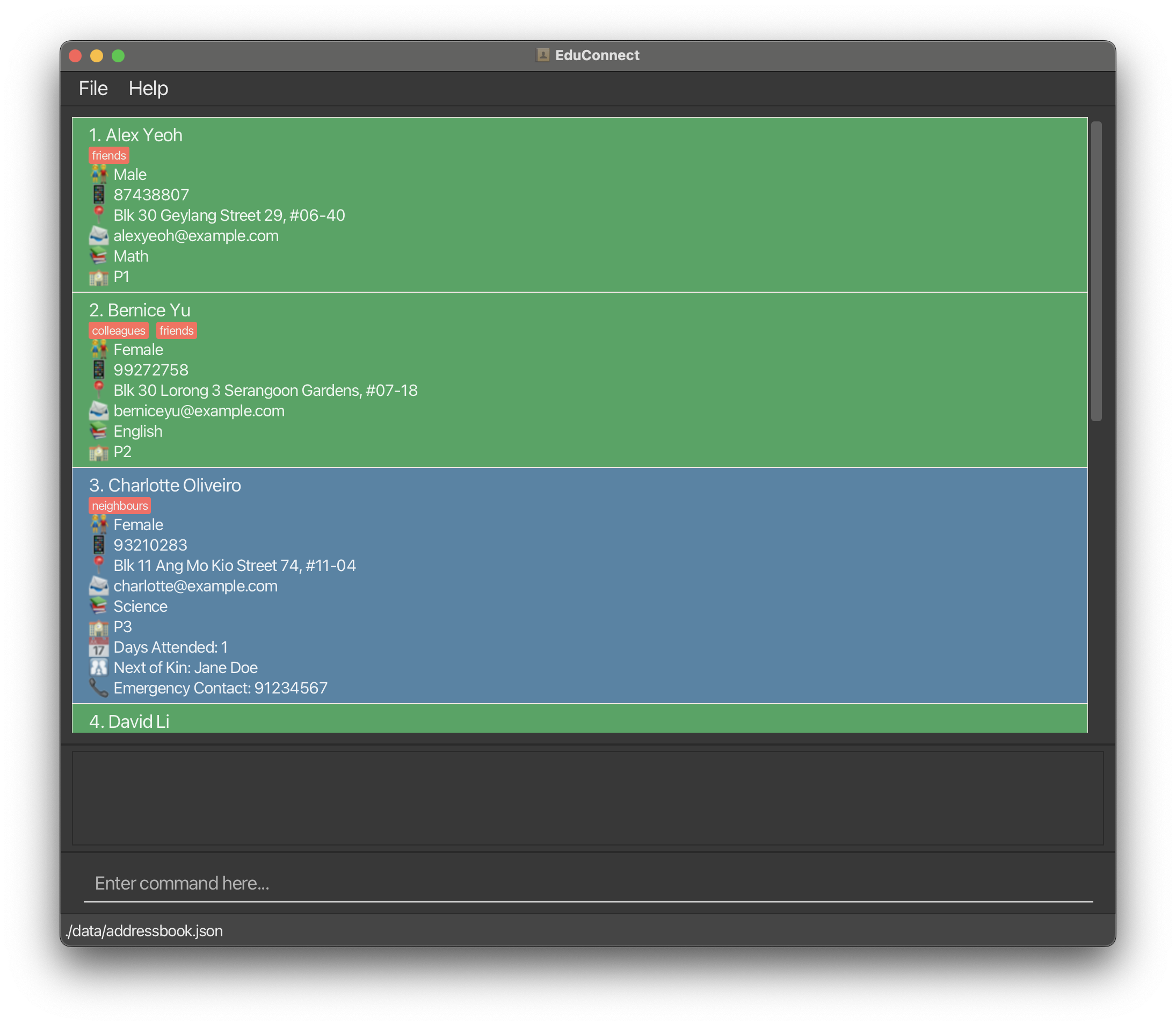
java -jar educonnect.jar - After a few seconds, the EduConnect window will appear with some sample data to help you get started. Here are some screenshots of how it might look:
macOS User Interface:
 Windows User Interface:
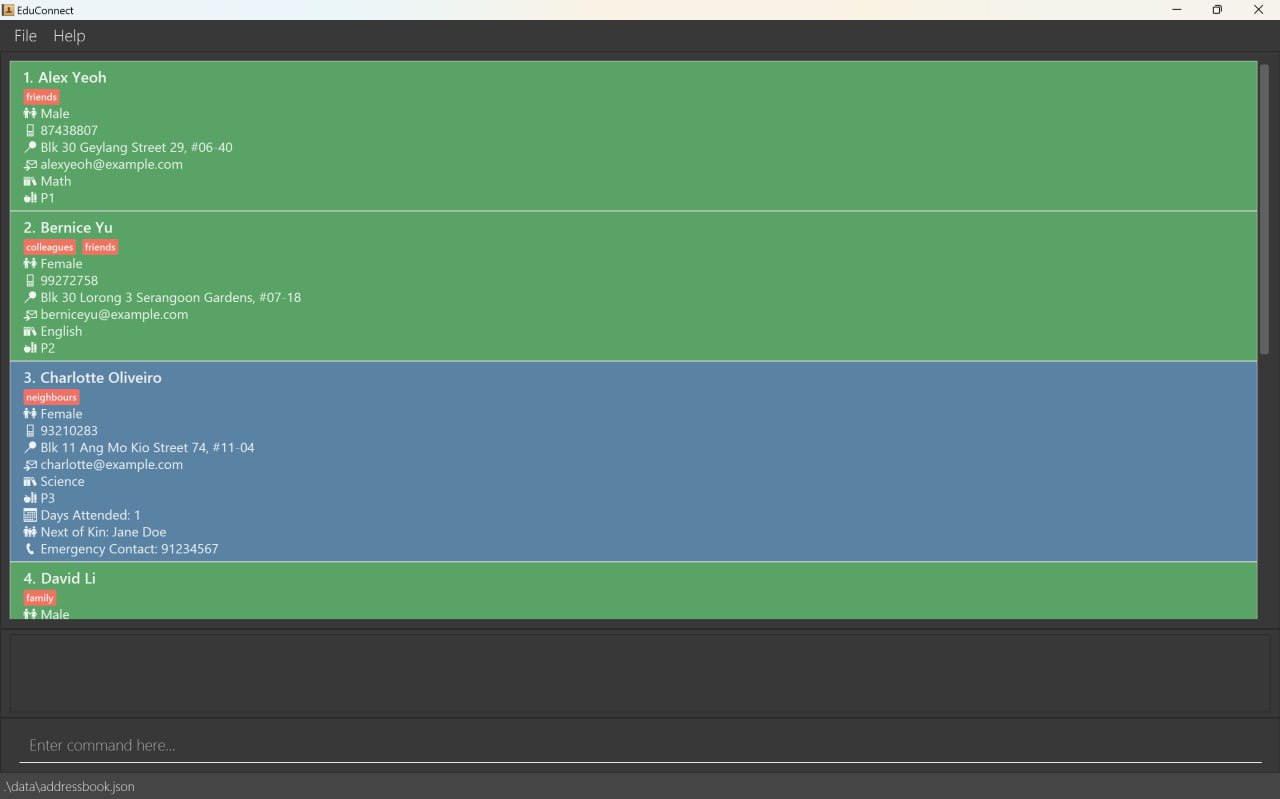 Note:
Note:- EduConnect will look slightly different on macOS and Windows. Specifically, the emojis on macOS will be in color, while those on Windows will appear in monochrome.
- The screenshots in this User Guide will primarily be from macOS.
-
Enter a command:
-
Type a command in the command box and press Enter to send it. For example, typing
helpand pressing Enter will open a help window. -
Here are some commands you can try:
-
list: Displays all the student and teacher details. -
student /name John Doe /gender male /contact 98765432 /email johnd@example.com /address 311, Clementi Ave 2, #02-25 /subject Physics /classes 7A,7B /attendance 0 /nok Bob Doe /emergency 87654321: Adds a new student with the specified details. -
delete 3: Deletes the 3rd contact shown in the current list. -
clear: Deletes all entries. -
exit: Exits the app.
-
-
For more detailed explanations of each command, see the Features section below.
If you have any questions or need help, please refer to the FAQ section.
Parameter Details
The table below provides a quick overview of each parameter associated with a command in EduConnect, along with the specific constraints to keep in mind when using them.
Warning:
Make sure the constraints for each parameter are met when entering a command. Not following these constraints may lead to errors and prevent the command from being executed correctly.
A person is considered a duplicate if they share the same phone number or email address, regardless of whether they are a student or teacher. For example, adding a student with the phone number
12345678will result in an error if another student or teacher already has that phone number.
| Parameter | Definition | Constraints | Examples |
|---|---|---|---|
NAME |
The name of the person. | - Must only contain alphanumeric characters and spaces - Compulsory field |
John Doe, Elizabeth Chua
|
GENDER |
The gender of the person. | - Must be either male or female- Compulsory field |
male, female
|
PHONE_NUMBER |
The contact number of the person. | - Must be exactly 8 digits long as according to Singapore’s phone numbers - Compulsory field |
98765432, 92160436
|
EMAIL |
The email address of the person. | - Must be in the format example@domain- Compulsory field - Top-Level domain is optional |
johnd@example.com, elizchua@yahoo.com
|
ADDRESS |
The residential address of the person. | - Any value is allowed - Optional field |
311, Clementi Ave 2, #02-25, Blk 30 Lorong 3 Serangoon Gardens, #07-18
|
SUBJECT |
The subject taught by the teacher or taken by the student. | - Must only contain alphanumeric characters and spaces - Compulsory field |
Physics, English
|
CLASSES |
The class(es) associated with the person. | - Must only contain alphanumeric characters - Multiple classes are separates by a comma - Compulsory field |
7A, 5A, 8C
|
ATTENDANCE |
The attendance count of the student. | - Must be a non-negative integer - Optional student only field |
0, 5
|
NEXT_OF_KIN |
The next of kin of the student. | - Follows the same specifications as NAME - Compulsory student only field |
John Doe, Elizabeth Chua
|
EMERGENCY_CONTACT |
The contact to use in cases of emergencies involving the student. | - Follows the same specifications as PHONE_NUMBER - Compulsory student only field |
98765432, 92160436
|
TAG |
A label assigned to a person for categorization. | - Must only contain alphanumeric characters - Optional field |
friend, family
|
INDEX |
The position of the person in the displayed list. | - Must be a positive integer and less than or equal to the largest index displayed on the GUI |
1, 2, 3
|
ATTRIBUTE |
The attribute by which the list is to be sorted. | - Must be one of name, subject, class or attendance
|
name, subject, class, attendance
|
Words in
UPPER_CASEare the parameters to be supplied by the user.
e.g. inclear /name NAME,NAMEis a parameter which can be used asclear /name John Doe.Items in square brackets are optional.
e.g.edit INDEX [/name NAME] [/contact PHONE_NUMBER]can be used asedit 1 /name Johnor asedit 2 /contact 94567732or asedit /name John /contact 94567732.Items followed by
… can be repeated multiple times, or not used at all.
e.g.[/tag TAG]…can be used as(i.e. 0 times),/tag friend,/tag friend /tag familyetc.Parameters can be in any order.
e.g. if the command specifies/name NAME /contact PHONE_NUMBER,/contact PHONE_NUMBER /name NAMEis also acceptable.Any extra parameters entered for commands that don’t require them (like
help,list, andexit) will be ignored.
e.g. if the command specifieshelp 123, it will be interpreted ashelp.If you are using a PDF version of this document, be careful when copying and pasting commands that span multiple lines as space characters around line-breaks may not transfer correctly when pasted into the application.
Features
Adding a Person
Adding a student: student
Adds a student to EduConnect.
Format: student /name NAME /gender GENDER /contact PHONE_NUMBER /email EMAIL [/address ADDRESS] /subject SUBJECT [/subject SUBJECT]… /classes CLASSES [/attendance ATTENDANCE] /nok NEXT_OF_KIN /emergency EMERGENCY_CONTACT [/tag TAG]…
The address, attendance and tag fields are optional when creating a student. If not specified, attendance will default to 0, and the address field will be greyed out in the GUI.
The subject field is required at least once and can be repeated if needed. (e.g.
/subject Math /subject Science)
The
studentcommand will show an error if the student’s phone number or email address matches another person’s phone number or email address. For more information, refer to the Parameter Details section.
Example:
- The command
student /name John Doe /gender male /contact 98765432 /email johnd@example.com /address 311, Clementi Ave 2, #02-25 /subject Physics /classes 7A,7B /attendance 0 /nok Bob Doe /emergency 87654321adds a student with the following details:- the name John Doe
- the gender male
- the contact number 9876 5432
- the email address johnd@example.com
- the address 311, Clementi Ave 2, #02-25
- the subject taken as Physics
- the classes 7A and 7B
- a starting attendance of 0 days
- the next of kin whose name is Bob Doe
- an emergency contact 8765 4321
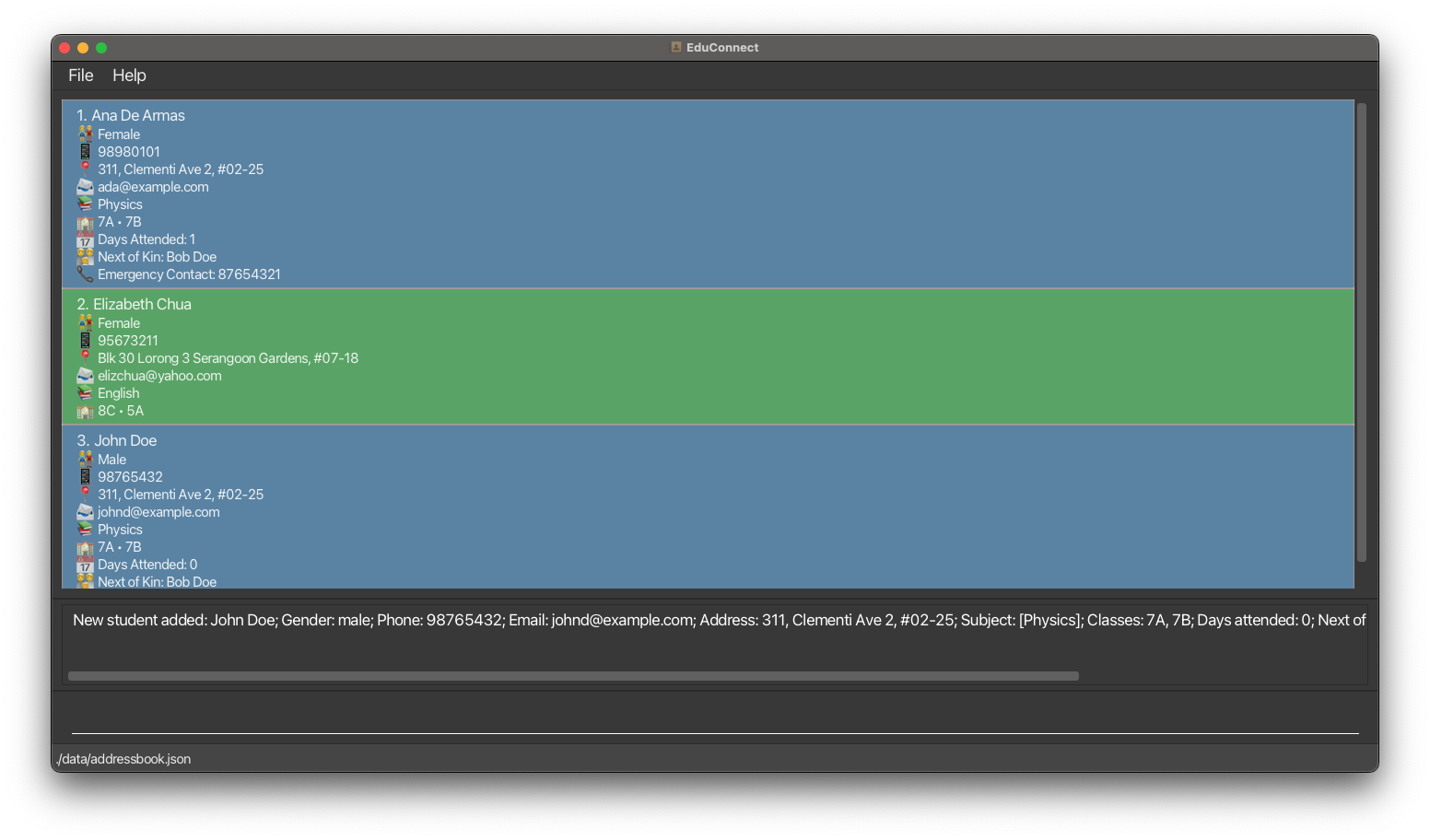
When a new student is added using the example command above, they will be displayed as shown below, with the following example success message:
New student added: John Doe; Gender: male; Phone: 98765432; Email: johnd@example.com; Address: 311, Clementi Ave 2, #02-25; Subject: [Physics]; Classes: 7A, 7B; Days attended: 0; Next of Kin: Bob Doe; Emergency Contact: 87654321; Tags:
Adding a teacher: teacher
Adds a teacher to EduConnect.
Format: teacher /name NAME /gender GENDER /contact PHONE_NUMBER /email EMAIL [/address ADDRESS] /subject SUBJECT [/subject SUBJECT]… /classes CLASSES [/tag TAG]…
The address and tag fields are optional when creating a teacher. If not specified, the address field will be greyed out in the GUI.
The subject field is required at least once and can be repeated if needed. (e.g.
/subject Math /subject Science)
The
teachercommand will show an error if the teacher’s phone number or email address matches another person’s phone number or email address. For more information, refer to the Parameter Details section.
Example:
- The command
teacher /name Elizabeth Chua /gender female /contact 95673211 /email elizchua@yahoo.com /address Blk 30 Lorong 3 Serangoon Gardens, #07-18 /subject English /classes 5A, 8Cadds a teacher with the following details:- the name Elizabeth Chua
- the gender female
- the contact number 9567 3211
- the email address elizchua@yahoo.com
- the address Blk 30 Lorong 3 Serangoon Gardens, #07-18
- the subject she teaches as English
- the classes she teaches 5A and 8C
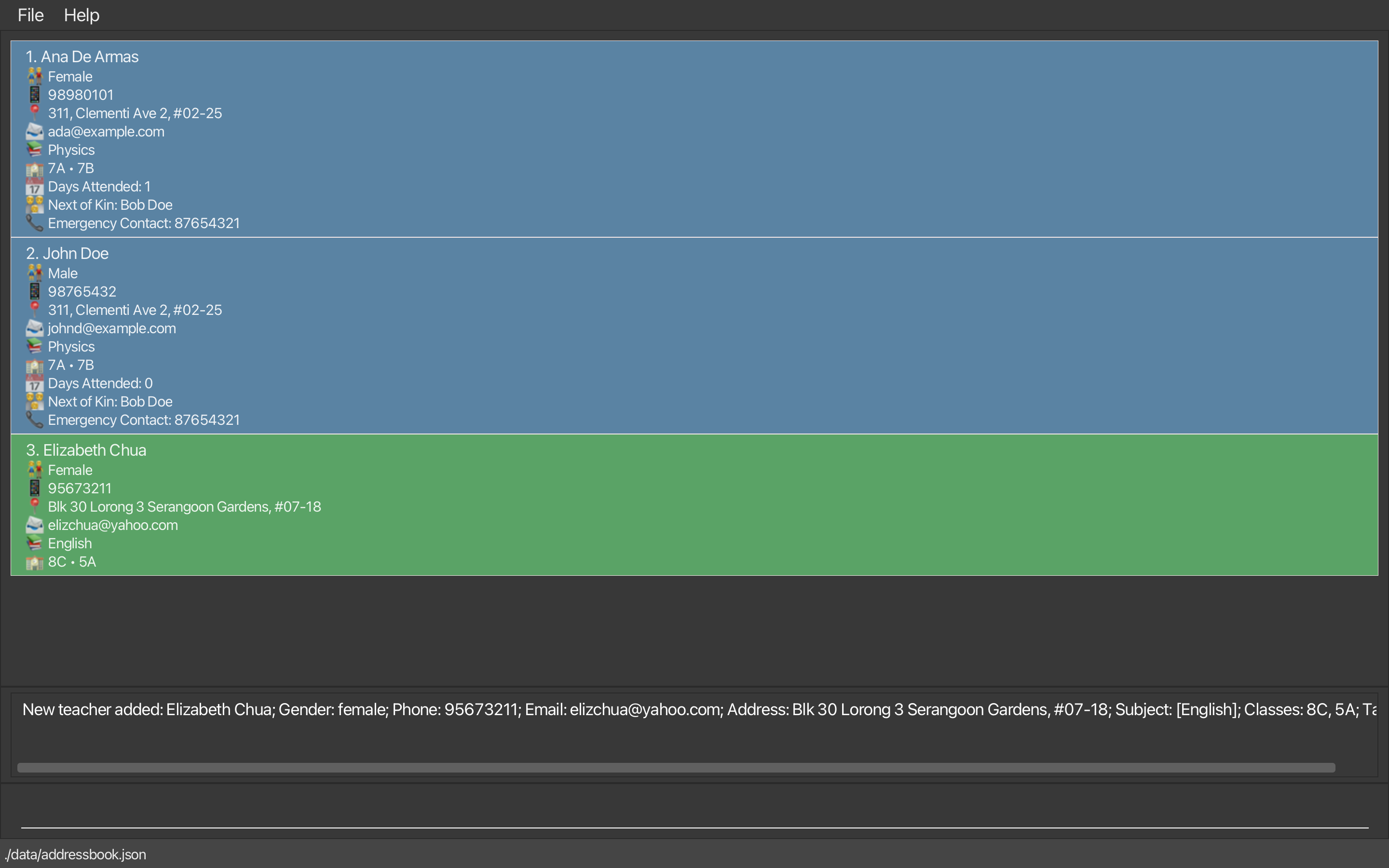
When a new teacher is added using the example command above, they will be displayed as shown below, with the following example success message:
New teacher added: Elizabeth Chua; Gender: female; Phone: 95673211; Email: elizchua@yahoo.com; Address: Blk 30 Lorong 3 Serangoon Gardens, #07-18; Subject: [English]; Classes: 8C, 5A; Tags:
Managing Entries
Editing a person : edit
Edits an existing student or teacher in EduConnect.
Format: edit INDEX [/name NAME] [/gender GENDER] [/contact PHONE] [/email EMAIL] [/address ADDRESS] [/subject SUBJECT]… [/classes CLASSES] [/tag TAG]… [/nok NEXT_OF_KIN] [/emergency EMERGENCY_CONTACT]
- Edits the person at the specified
INDEX. The index refers to the index number shown in the displayed person list. - The
INDEXmust be a positive integer 1, 2, 3, … - At least one of the optional fields must be provided.
- Existing values will be replaced with the new input values provided in the command.
The
editcommand will show an error if the edited field results in a duplicate entry. For example, if you try to edit a person’s phone number which match another person’s phone number, the command will not be executed. For more information, refer to the Parameter Details section.
Examples:
-
edit 1 /contact 91234567 /email johndoe@example.comedits the phone number and email address of the 1st person in the displayed list to be91234567andjohndoe@example.comrespectively. -
edit 2 /name Betsy Croweredits the name of the 2nd person in the displayed list to beBetsy Crower.
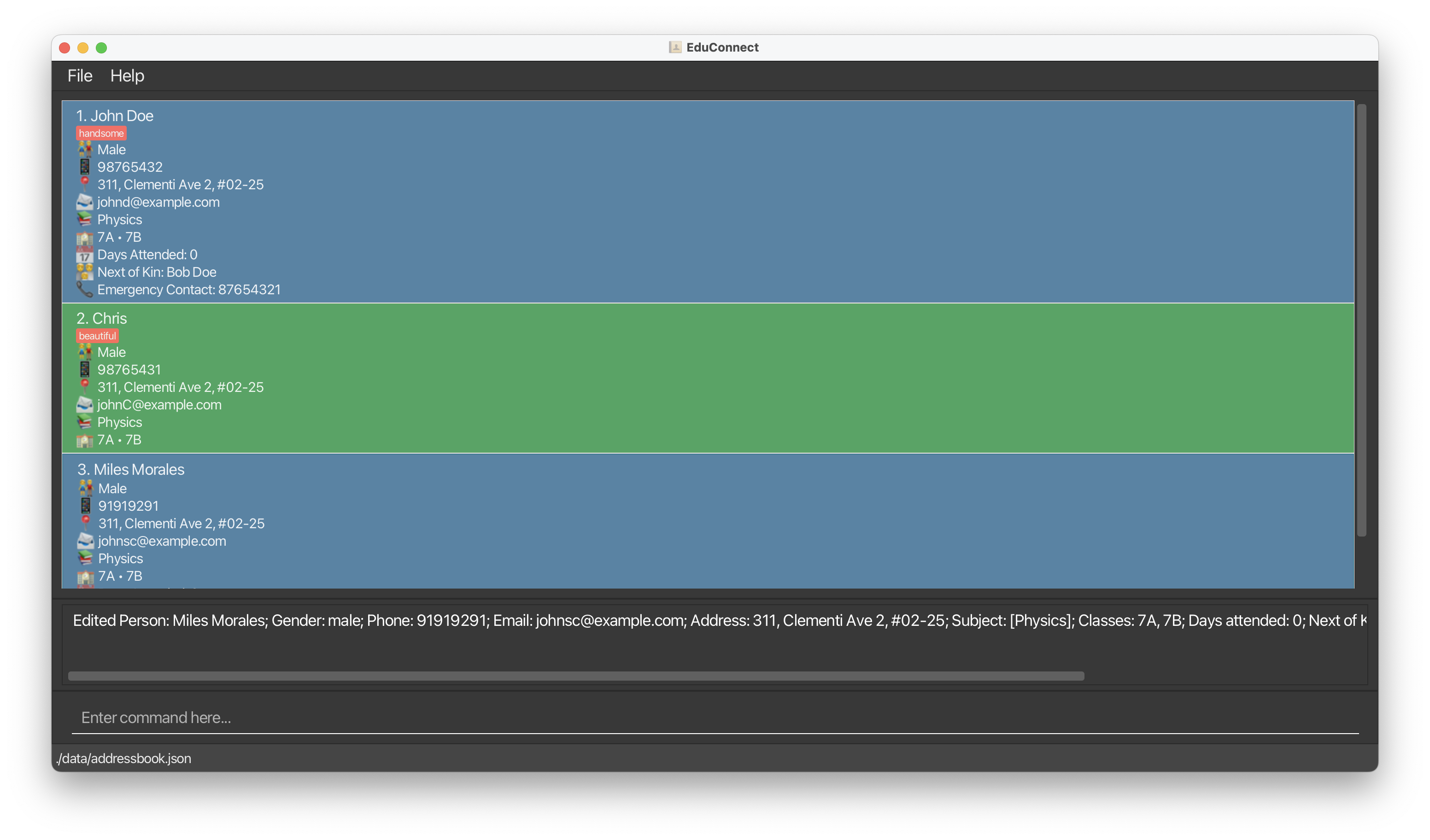
When a person is edited using the example command above, they will be displayed as shown below, with the following example success message:
Edited Person: Miles Morales; Gender: male; Phone 91919291; Email: johnsc@example.com; Address: 311, Clementi Ave 2, #02-25; Subject: [Physics]; Classes: 7A, 7B; Days attended: 0; Next of Kin: John Morales; Emergency Contact: 87654321; Tags:
Deleting a person : delete
Deletes the specified person(s) from EduConnect.
Format: delete INDEX…
- You can delete one or more people by specifying their
INDEX(es) in the list. - The index refers to the index number shown in the displayed person list.
- The index must be a positive integer 1, 2, 3, …
- The indexes entered must be unique.
The command will not be executed if any of the provided indexes are invalid.
Examples:
-
listfollowed bydelete 2deletes the 2nd person in EduConnect. -
find /name Betsyfollowed bydelete 1deletes the 1st person in the results of thefindcommand. -
delete 1 2 3deletes the 1st, 2nd and 3rd persons in the list in one command.
Clearing entries : clear
Clears all entries from EduConnect or specific entries based on the provided parameters.
Format: clear [/name NAME] [/gender GENDER] [/contact PHONE] [/email EMAIL] [/address ADDRESS] [/subject SUBJECT] [/classes CLASSES] [/tag TAG]…
- If no fields are provided, all entries will be cleared.
- If one or more optional fields are provided, only entries matching at least one of those fields will be cleared.
The
clearcommand works on the overall list of entries and not on a filtered list produced by thefindcommand.
Examples:
-
clearclears all entries in EduConnect. -
clear /classes 7Aclears all entries related to class 7A (students or teachers). -
clear /name John /subject Physicsclears entries for all persons named John or anyone associated with the subject Physics.
Attendance Taking
Marking attendance : mark
Increases the attendance of all students in EduConnect by 1.
Format: mark
The
markcommand works on the overall list of entries and not on a filtered list produced by thefindcommand. It affects the attendance of all student entries.
Unmarking attendance : unmark
Decreases the attendance of the specified student(s) in EduConnect by 1.
Format: unmark INDEX…
- You can unmark attendance for one or more students by specifying their
INDEX(es) in the list. - The index refers to the index number shown in the displayed person list.
- The index must be a positive integer 1, 2, 3, …
- The indexes entered must be unique.
- The person corresponding to the index must be a student.
- The student must have attended at least one day to be unmarked.
Tip:
Use the
findcommand to filter the list of students before unmarking their attendance.
The command will not be executed if any of the provided indexes are invalid.
Example:
-
unmark 2reduces the attendance of the student at index 2 in EduConnect by 1. -
find /name Johnfollowed byunmark 1reduces the attendance of the 1st student within the filtered list. -
unmark 1 2 3reduces the attendance of the 1st, 2nd and 3rd students in the list by 1.
Reset attendance: resetAttendance
Resets the attendance of all students in EduConnect to 0.
The
resetAttendancecommand works on the overall list of entries and not on a filtered list produced by thefindcommand. It affects the attendance of all student entries.
Format: resetAttendance
Organizing Entries
Listing all persons : list
Displays a list of all person(s) in EduConnect.
Format: list
Use this command after
findto return to the full list of students and teachers.
Finding persons: find
Finds and displays person(s) who satisfies the provided parameters.
Format: find [/name NAME] [/gender GENDER] [/contact PHONE] [/email EMAIL] [/address ADDRESS] [/subject SUBJECT] [/classes CLASSES] [/tag TAG]…
- At least one of the optional fields must be provided.
- The search is case-insensitive. e.g.
hanswill matchHans. - The order of the keywords does not matter. e.g.
/name Hans Bowill matchBo Hans.
The find command performs an OR search, meaning that if multiple fields are specified, any match in any of the fields will return a result. Example:
/name Hans Bowill return Hans Gruber, Bo Yang.If none of the entries match the search criteria, EduConnect will return the full list of all entries, with the message
No possible entries in EduConnect to find!.
Only full words will be matched e.g.
/name Hanwill not matchHans.
Examples:
-
find /name JohnreturnsJohnandJohn Doe. -
find /name Mary /classes 7AreturnsMary Tan(who has the name “Mary”) andDavid Lee(who teaches or is in class 7A). -
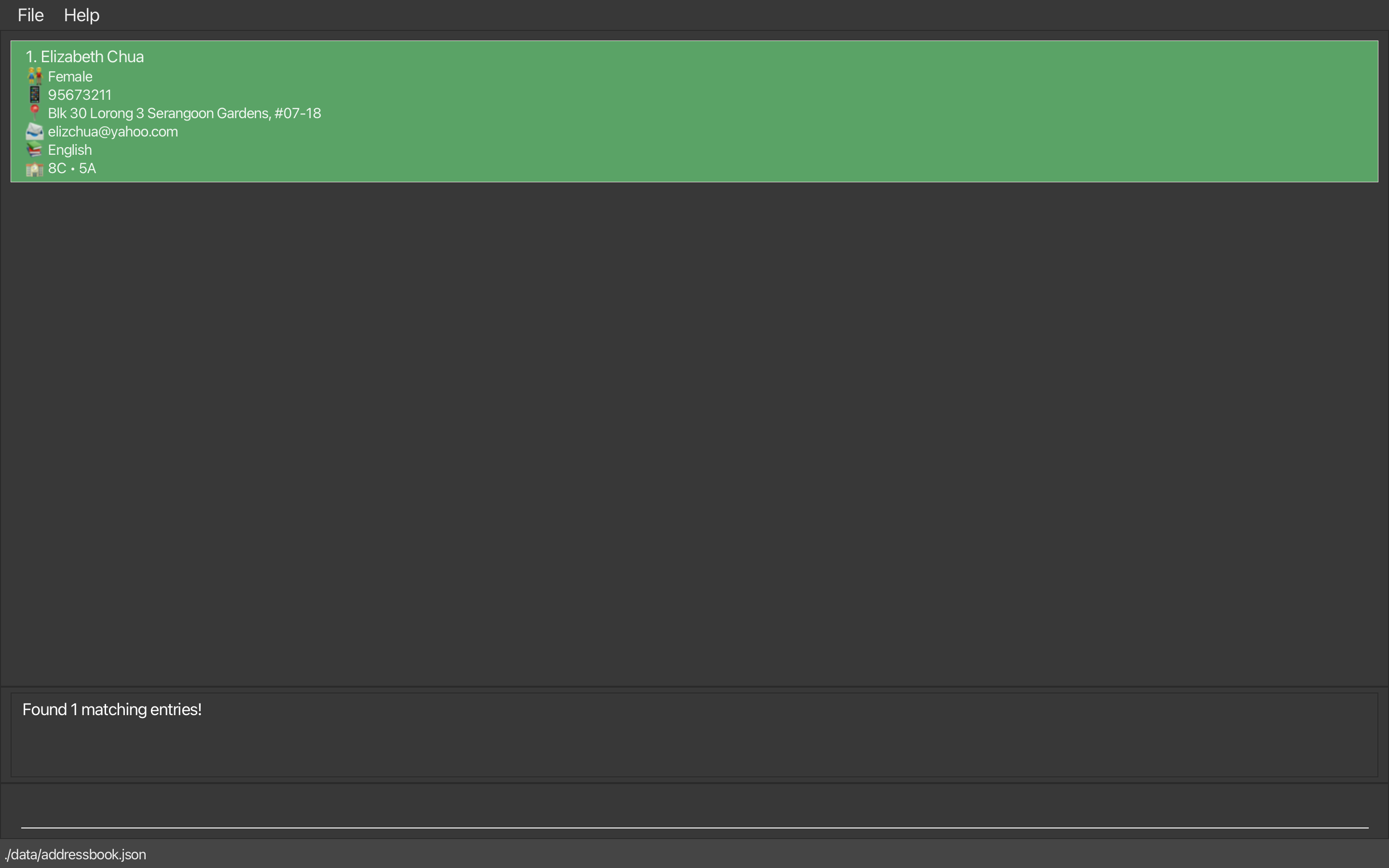
find /subject EnglishreturnsElizabethwho has the subject English
When the find command above is entered, the following results will be displayed, with the following success message:
Found 1 matching entries!
Sorting persons : sort
Sorts and displays the list of person(s) by name, subject, class, or attendance.
Format: sort ATTRIBUTE
- Sorts the results based on the specified
ATTRIBUTE. The available attributes arename,subject,class,attendance. -
sort namesorts the results by name in alphabetical order. -
sort subjectsorts the results by the subjects they take in alphabetical order. Only the first subject in each person’s list of subjects is considered when sorting. -
sort classsorts the results by class in alphanumerical order. Only the first class in each person’s list of classes is considered when sorting. -
sort attendancesorts the results by the number of days attended by students in descending order. Teachers, who do not have an attendance count, are placed at the end of the list - Sorting is case-insensitive.
Explanation on sorting by first item: When sorting by attributes such as subject or class, only the first item in the list of subjects or classes is considered. For instance:
- If a student has subjects listed as “Math, Physics, Chemistry”, the
sort subjectcommand will use “Math” as the primary sorting key.- Similarly, if a teacher is associated with classes “5A, 7C, 8B”, the
sort classcommand will use “5A” as the sorting key.
The
sortcommand works on the overall list of entries and not on a filtered list produced by thefindcommand.
Examples:
-
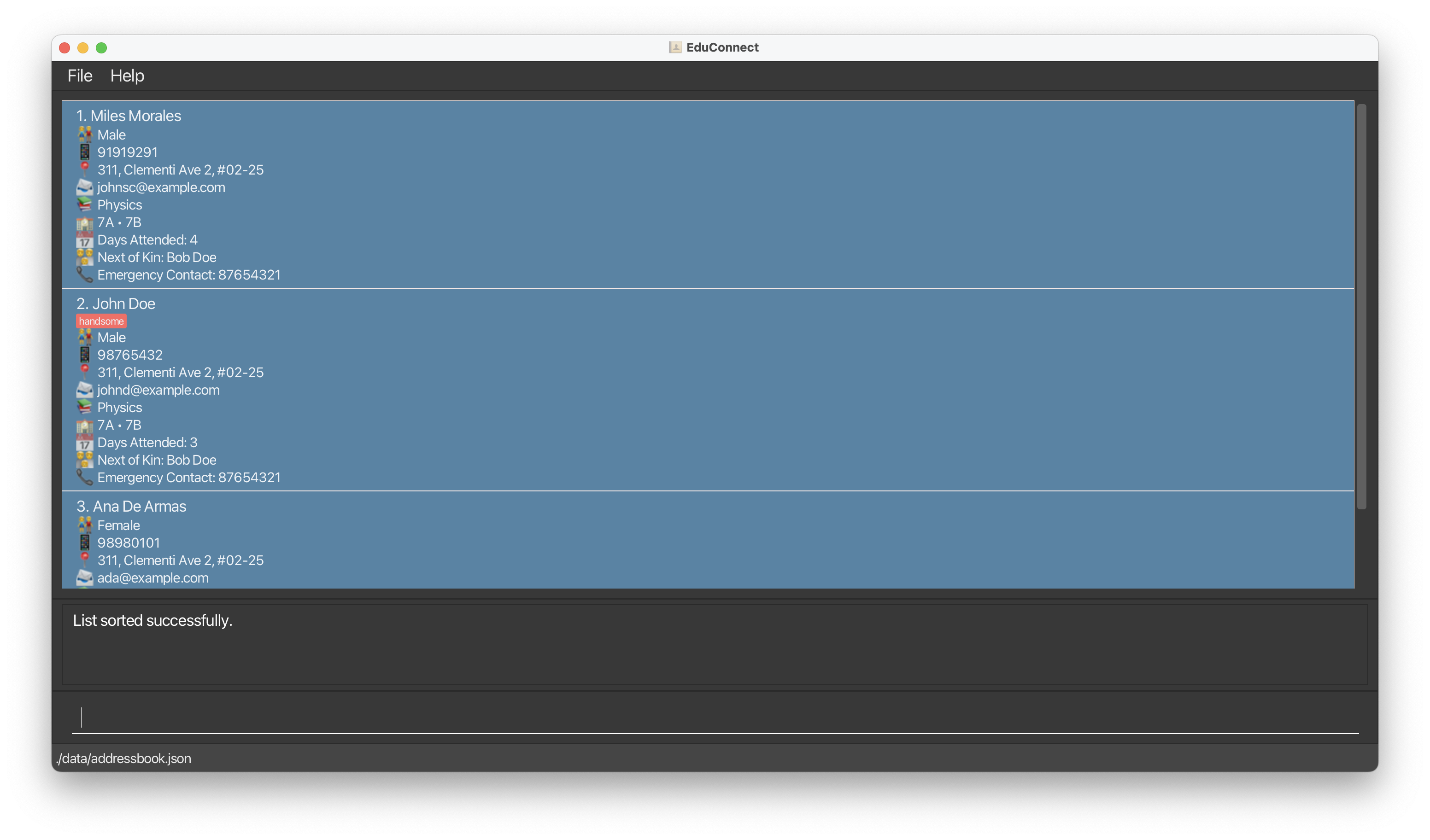
sort attendancesorts the list of students by attendance in descending order.
When the list of persons is sorted by attendance using the example command above, they will be displayed as shown below, with the following example success message:
List sorted successfully.
Command History
EduConnect has a built-in command history which allows users to navigate through previously entered valid commands in the command box by pressing the Up and Down arrow keys.
For example, if you have entered delete 1 and then unmark 2, pressing the Up arrow key will display unmark 2 in your command box, and pressing it again will display delete 1.
The command history is only stored for the current session. When you close EduConnect, the history is cleared and cannot be retrieved in future sessions.
Undoing the last command : undo
Reverts the most recent change made to EduConnect.
Format: undo
- Reverts EduConnect to its previous state.
- Only commands that modify the state of EduConnect (e.g.,
student,teacher,delete,edit,clear,sort) can be undone. - Multiple
undocommands can be used consecutively to revert multiple changes, one step at a time.
The
undocommand only works within the current session. Once you close EduConnect, the history of changes is cleared, and you will not be able to undo any actions from previous sessions.
Examples:
-
edit 1 /name Alex Kohfollowed byundorestores the name of the 1st person back to its original state. -
delete 3followed byundorestores the deleted person back to the list.
Redoing the last command : redo
Restores the most recently undone change in EduConnect.
Format: redo
- Restores EduConnect to the state before the
undocommand. - Only commands that were undone can be redone.
- Multiple
redocommands can be used consecutively to reapply multiple changes, one step at a time.
The
redocommand only functions in the current session. If EduConnect is closed, the action history is lost, and you will not be able to redo any previously undone actions from past sessions.
Examples:
-
edit 1 /name Alex Kohfollowed byundoand thenredorestores the name of the 1st person back toAlex Koh. -
delete 3followed byundoand thenredoremoves the person at position 3 from the list.
Other Features
Changing themes
EduConnect allow you to change between 2 different themes: Dark Mode and Light Mode.
Under the File menu, select Change Theme button to switch between the 2 different themes.
The selected theme will not be saved after closing the application. EduConnect will revert to its default theme, which is Dark Mode, when reopened.
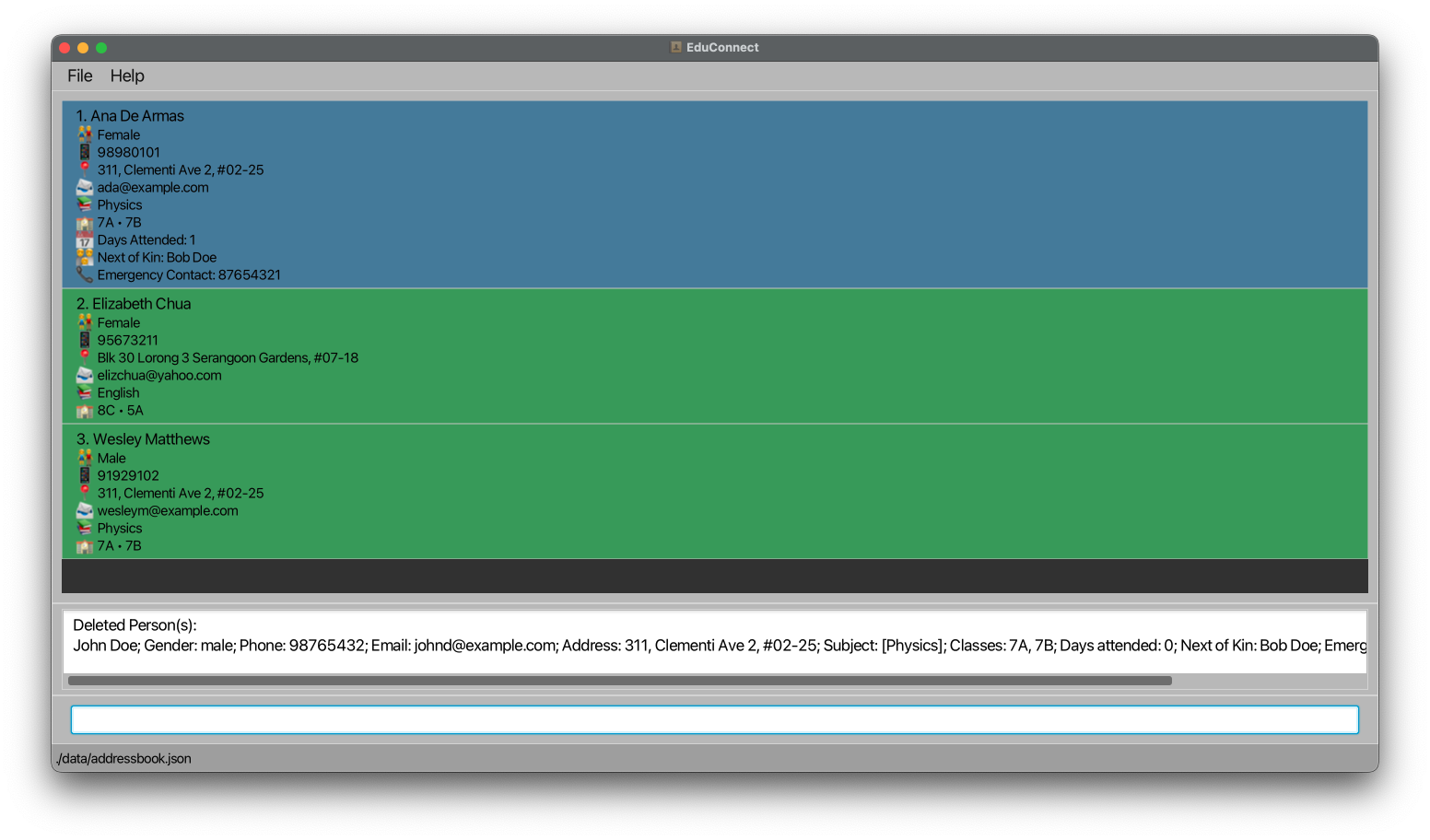
Here is an example of how the menu looks.

The dark theme will be the default theme when you open EduConnect.
The light theme can be toggled by following the above instructions.
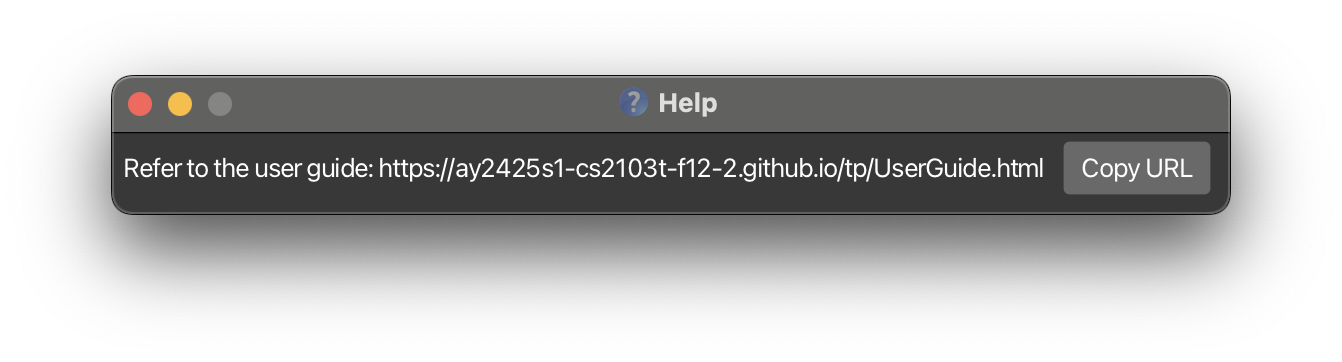
Viewing help : help
Shows a message with a URL link to access the user guide.
Format: help
Here is an example of how the help window looks.
Exiting the program : exit
Exits the program.
Format: exit
For Advanced Users
Saving the data
EduConnect data are saved in the hard disk automatically after any command that changes the data. There is no need to save manually.
Editing the data file
EduConnect data are saved automatically as a JSON file [JAR file location]/data/addressbook.json. Advanced users are welcome to update data directly by editing that data file.
- If your changes to the data file makes its format invalid, EduConnect will discard all data and start with an empty data file at the next run. Hence, it is recommended to take a backup of the file before editing it.
- Furthermore, certain edits can cause the EduConnect to behave in unexpected ways (e.g., if a value entered is outside of the acceptable range). Therefore, edit the data file only if you are confident that you can update it correctly.
How to Use This User Guide
This section provides tips on how to effectively navigate through the user guide to find and understand the information you need quickly.
Glossary
This section defines key terms and concepts used throughout the user guide.
- Case-insensitive: Refers to text matching that ignores uppercase and lowercase differences.
- Command: A text instruction that you type into the command box to perform a specific action in EduConnect.
- Command box: The text input field where you type commands to interact with EduConnect.
- Command Format: The required structure for entering commands in EduConnect.
- Constraints: The rules or conditions that a parameter must meet.
- Entries: Refers to the list of students and teachers stored in EduConnect.
- Filtered list: A subset of the full list of entries that match specific search criteria.
- GUI: Graphical User Interface. An interface that allows users to interact with the EduConnect application.
- JSON file: A file format used to store data in a structured way that is easy for software to read and write.
- Parameter: A value that you provide to a command to specify details about the action to be performed.
- Person: Refers to either a student or a teacher in EduConnect.
-
Top-level domain: The last part of an email address, such as
.com,.org, or.net.
Annotated Box Conventions
This section explains the different types of annotated boxes used in the user guide to highlight important information.
This box contains additional information that can help you use EduConnect more effectively.
This box contains helpful tips to enhance your experience with EduConnect.
This box contains warnings about potential issues or important things to be aware of.
FAQ
Q: How do I transfer my data to another Computer?
A: First, install EduConnect on the new computer. Then, copy the data file from your old computer and replace the empty data file in the new installation folder with your existing one. This will transfer all your previous data to the new computer.
Q: How do I check my Java version?
A: You can check your Java version by opening the Command Prompt (Windows) or Terminal (Mac/Linux) and typing java -version. Press Enter, and the Java version installed on your computer will be displayed.
Q How do I install Java 17?
A: You can download Java 17 from the Oracle website. Follow the installation instructions provided on the website to install Java 17 on your computer.
Known issues
-
When using multiple screens, if you move the application to a secondary screen, and later switch to using only the primary screen, the GUI will open off-screen. The remedy is to delete the
preferences.jsonfile created by the application before running the application again. -
If you minimize the Help Window and then run the
helpcommand (or use theHelpmenu, or the keyboard shortcutF1) again, the original Help Window will remain minimized, and no new Help Window will appear. The remedy is to manually restore the minimized Help Window.
Command summary
Below is a summary of the commands available in EduConnect. For more details, please navigate to the corresponding header by clicking on the table below.
| Action | Format, Examples |
|---|---|
| Add Student |
student /name NAME /gender GENDER /contact PHONE_NUMBER /email EMAIL [/address ADDRESS] /subject SUBJECT [/subject SUBJECT]… /classes CLASSES [/attendance ATTENDANCE] /nok NEXT_OF_KIN /emergency EMERGENCY_CONTACT [/tag TAG]… e.g., student /name John Doe /gender male /contact 98765432 /email johnd@gmail.com /address 311, Clementi Ave 2, #02-25 /subject Physics /classes 7A /attendance 0 /nok Bob Doe /emergency 87654321
|
| Add Teacher |
teacher /name NAME /gender GENDER /contact PHONE_NUMBER /email EMAIL [/address ADDRESS] /subject SUBJECT [/subject SUBJECT]… /classes CLASSES [/tag TAG]… e.g., teacher /name Elizabeth Chua /gender female /contact 95673211 /email elizchua@yahoo.com /address Blk 30 Lorong 3 Serangoon Gardens, #07-18 /subject English /classes 5A, 8C
|
| Edit |
edit INDEX [/name NAME] [/gender GENDER] [/contact PHONE] [/email EMAIL] [/address ADDRESS] [/subject SUBJECT] [/classes CLASSES] [/tag TAG]… [/nok NEXT_OF_KIN] [/emergency EMERGENCY_CONTACT]e.g., edit 2 /name James Lee /email jameslee@example.com
|
| Delete |
delete INDEXe.g., delete 3, delete 1 2 4
|
| Clear |
clear [/name NAME] [/gender GENDER] [/contact PHONE] [/email EMAIL] [/address ADDRESS] [/subject SUBJECT] [/classes CLASSES] [/tag TAG]…e.g., clear, clear /name Jacob
|
| Mark Attendance | mark |
| Unmark Attendance |
unmark INDEX… e.g., unmark 1, unmark 1 2 3
|
| Reset Attendance | resetAttendance |
| List | list |
| Find |
find [/name NAME] [/gender GENDER] [/contact PHONE] [/email EMAIL] [/address ADDRESS] [/subject SUBJECT] [/classes CLASSES] [/tag TAG]…e.g., find /name James /classes 8B
|
| Sort |
sort ATTRIBUTEe.g., sort name,sort subject
|
| Undo | undo |
| Redo | redo |
| Help | help |
| Exit | exit |